Close Menu
Newsoutnow.comNewsoutnow.com
    Quick Access
    • Bigg-Boss
    • Entertainment
    • High Life
    • Infotainment
    • News
      • Business
      • Sports
      • Technology
    • News Wire
    • Photo Gallery
    • Stars-Wiki
    • Trending
    • World
    Facebook X (Twitter) Instagram
    • About
    • Download the App
    • Contact Us
    Facebook X (Twitter) Pinterest
    Newsoutnow.comNewsoutnow.com
    • Entertainment
    • Infotainment
    • News
      • Sports
      • Business
      • Technology
      • World
    • High Life
    • Trending
    Newsoutnow.comNewsoutnow.com
    Home»News»Technology»4 ways to find all saved Wifi passwords in Windows and MacOS
    Technology

    4 ways to find all saved Wifi passwords in Windows and MacOS

    Aman ShuklaBy Aman ShuklaJuly 27, 20223 Mins Read
    Share Facebook Twitter Pinterest LinkedIn Tumblr Reddit Telegram Email
    Wifi passwords
    Share
    Facebook Twitter LinkedIn Pinterest Email
    Table of Contents
    • 1 How to find Wi-Fi passwords in MacOS
    • 2 How to find Wi-Fi passwords on Windows
      • 2.1 To find all your Wi-Fi network passwords on Windows:

    Wi-Fi passwords can be difficult to remember (particularly if they are long). Yet, generally you don’t have to memorize the password of a Wi-Fi network you’ve already connected to before, on the grounds that your PC automatically remembers it, permitting you to stay connected or reconnect, regardless of whether you leave and return.

    Be that as it may, assuming you want to share the Wi-Fi password with another person, it’s good to have this information down on a piece of paper on your desk or a random note in your mobile. You could likewise check the wireless router, which typically has the password on a sticker label on the back.

    In any case, regardless of whether you have the password saved anywhere, and you can’t memorize it, there’s a simple method to find all your Wi-Fi passwords at once – – just check your PC.

    As long as your Windows or Mac computer has connected to the network before, that Wi-Fi password is always saved in your settings. It might require a bit of digging on your part, however the passwords are all there, saved, and ready to be shared to any individual who needs to connect to Wi-Fi.

    How to find Wi-Fi passwords in MacOS

    To begin, use the search to open the Keychain Access application and do the following:

    1. Click on System under System Keychains in the sidebar.

    2. Then, click on Passwords at the top of the window.

    3. Find the Wi-Fi network you want the password for and double-click on it.

    4. At last, check the box next to Show password and type your password when prompted.
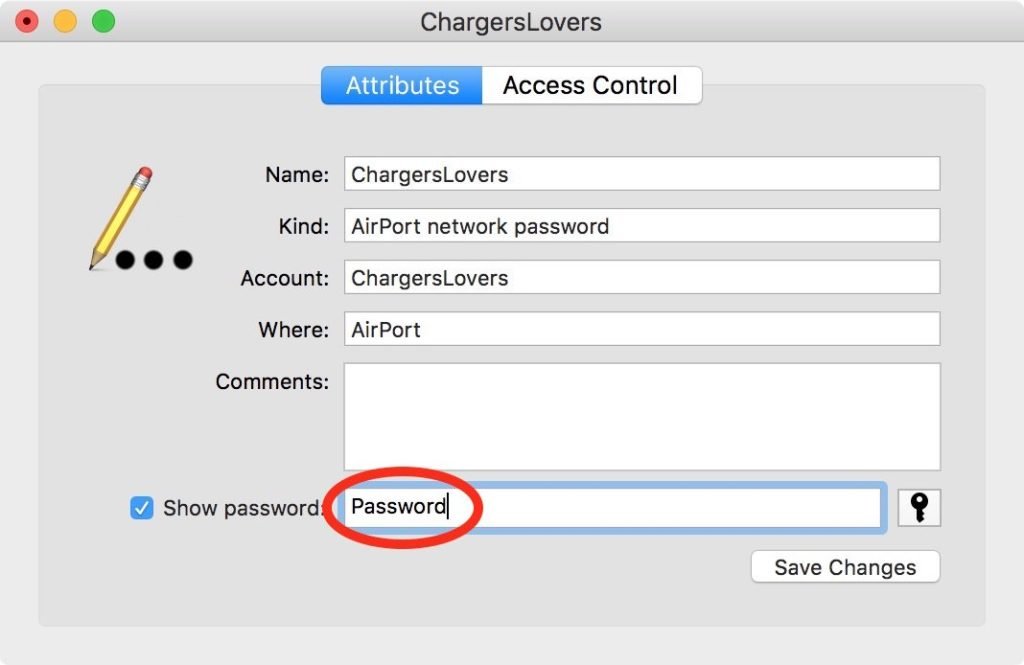
    The password field will, at that point, show the password you used to log in to that Wi-Fi network. You can double-click in the password field to choose the password and copy it to your clipboard, if necessary.

    How to find Wi-Fi passwords on Windows

    To find the password to the Wi-Fi network you’re presently connected to on Windows:

    1. Click the Start button and after that go to Control Panel > Network and Internet > Network and Sharing Center (Windows 11) or Settings > Network & Internet > Status > Network and Sharing Center (Windows 10).

    2. Then go to Connections, click your Wi-Fi network name highlighted in blue.

    3. In the Wi-Fi Status page that opens, click Wireless Properties and then on the Security tab.

    4. At last, check the box next to Show characters to display your Wi-Fi network password above it.
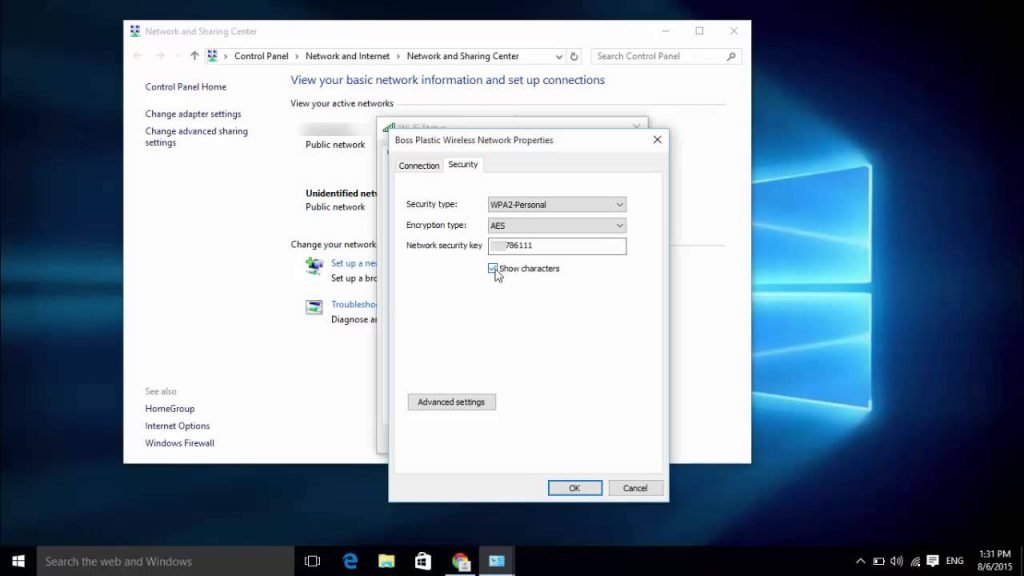
    In any case, this isn’t the only way to find your Wi -Fi network passwords. The method above just permits you to see the password to whatever Wi-Fi network you’re at present connected to, yet there is a method for finding the passwords to all the Wi-Fi networks you’ve at any point connected to on your PC

    To find all your Wi-Fi network passwords on Windows:

    1. Right-click on the Windows icon in the taskbar on your desktop.

    2. Click Windows Terminal (Admin).

    3. Type in netsh wlan show profile and tap Enter on your keyboard to view all Wi-Fi network you’ve connected to.

    4. Once you find the Wi-Fi network you want the password for, type in netsh wlan show profile “(Wi-Fi network name)” key=clear (for example, netsh wlan show profile “Netgear667” key=clear), and then tap the Enter key.
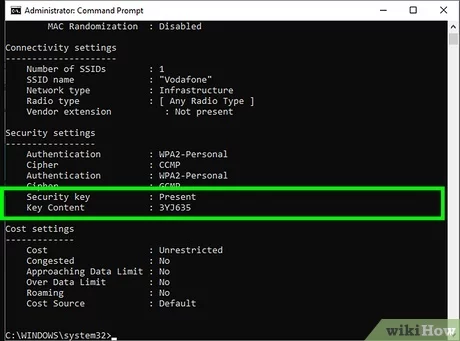
    Settings for profile, connectivity, security, and cost will show up. The Wi-Fi network password will show up under Security settings, and next to Key Content. In addition to Windows Terminal, you can likewise use the Command Prompt application to type in the commands listed above to find your Wi-Fi passwords.

    Share. Facebook Twitter Pinterest LinkedIn Tumblr Email
    Previous ArticleLegendary Punjabi Singer Balwinder Safri Passes Away The Punjabi Music Industry Mourns His Sad Demise
    Next Article Abhishek Bachchan, Kapil Dev to hoist tricolour at the Indian Film Festival of Melbourne
    Aman Shukla
    Aman Shukla

    A media enthusiast who has a strong hold on communication ,content writing and copy writing

    Next Up For You

    Technology

    CoinDCX Lists World of Dypians (WOD), Expanding Access to Next-Generation Blockchain Gaming in India

    February 1, 2026
    Technology

    WazirX Integrates Fireblocks to Enhance Digital Asset Custody

    February 1, 2026
    Technology

    Toyow's $TTN Token Lists on CoinDCX, Strengthening India's Position in the Global RWA Economy

    December 12, 2025
    Technology

    CoinDCX Introduces 'Earn' Feature on USDD, Up to 8% APR for Indian Crypto Investors

    December 11, 2025
    Technology

    ZebPay Marks 11 Years of Leading Bitcoin Investments in India; Unveils New Brand Identity

    December 6, 2025
    Technology

    CoinSwitch Releases India's First Comprehensive VDA Handbook for Police and LEAs

    December 6, 2025
    More Reads

    Jazz at Lincoln Center Announces Leadership Transition as it Ushers in a New Era

    February 1, 2026

    Infosys and Tennis Australia Bring AI-First Experiences and Accessibility to Australian Open 2026

    February 1, 2026

    Mayilaa — A Newton Cinema Production — Announces World Premiere at the 55th International Film Festival Rotterdam (IFFR)

    February 1, 2026

    Spielwarenmesse honours outstanding innovations with the ToyAward

    February 1, 2026

    NYSE Content Advisory: Pre-Market Update + First Lady Melania Trump to Ring NYSE Bell for Doc ‘Melania’

    February 1, 2026

    Blokees Exhibits Multiple Products at Spielwarenmesse 2026

    February 1, 2026

    Mandira Bedi Shares Her Journey of Resilience, Discipline and Reinvention on the New Episode of Herbalife India’s Podcast Live Your Best Life, Unscripted

    February 1, 2026
    Facebook X (Twitter) Pinterest RSS
    • About
    • Download the App
    • Contact Us
    © 2026 newsoutnow.com

    Type above and press Enter to search. Press Esc to cancel.